


Manual
Read more about how Fietsknoop works.
Also watch our instruction videos in Dutch
Popular search terms
Search the manual
- Altitude profile routes in app
The altitude profile of a route is visible in all routes, including gpx routes, for users with a Fietsknoop[+]Plus account (from app version 5.4.3, February 2024).
A route that is still 'under construction' does not yet contain an altitude profile. This only becomes visible after saving the route.

- Add another person's route
Did you find a nice route via 'Search'? Add it quickly to your own route list.
App:
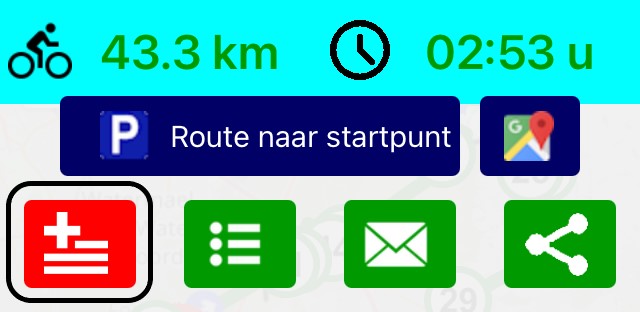
Open the preferred route. On the overlay screen, you will see the red Add button.
Website:
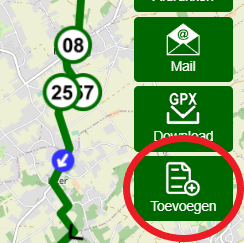
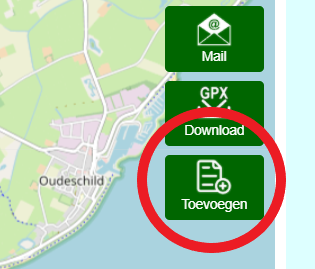
Open the route you would like. On the right side of the map are some green buttons. Click on the Add button ('Toevoegen').
- Share routes on social media
Open your route in the app, from your Routes list. On the overlay screen, click on the social media share symbol:

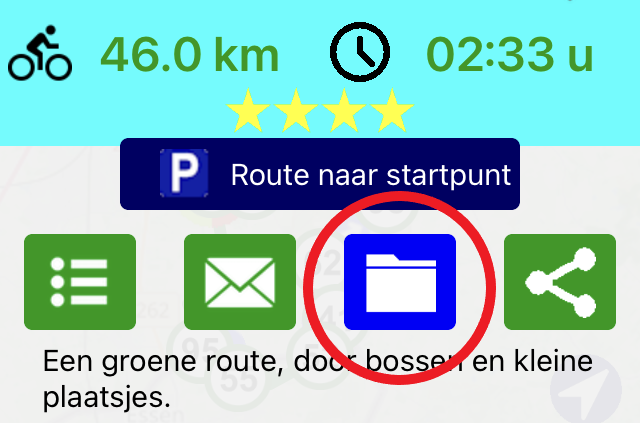
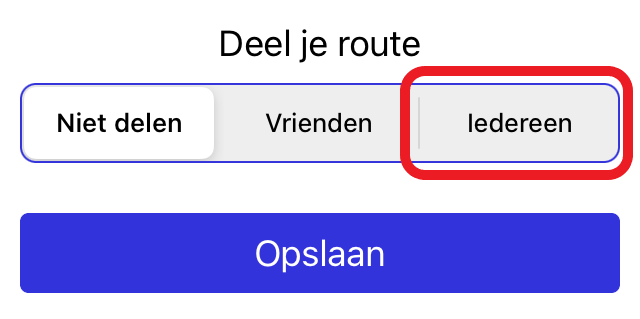
Is this symbol not on your route's overlay screen? Then the route is still 'private'. Adjust this by clicking the archive symbol and changing the route to 'Everybody'.
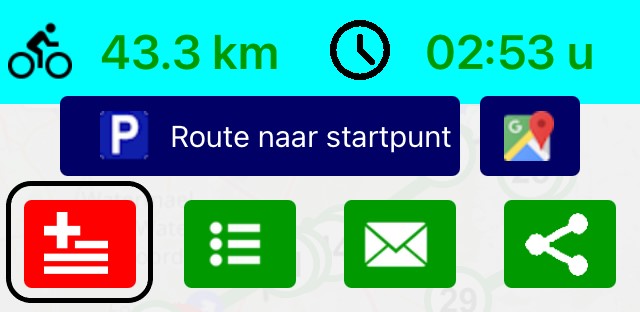
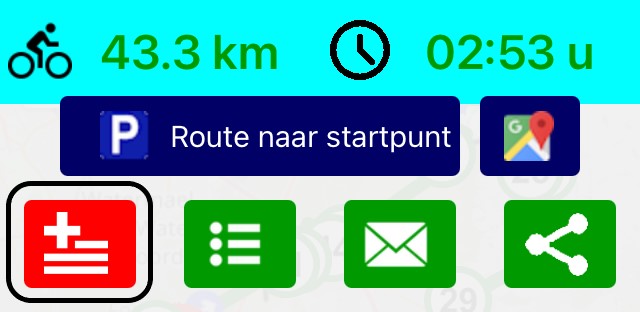
The recipient can open the route in Fietsknoop and, if desired, add it directly to his or her own Routes list by clicking on the red square button with the + sign.
#share #routes #socialmedia #facebook #instagram #whatsapp #signal
- Elevation profile routes
Website:
The elevation profile of a route is visible below the map of your own route, when you are logged in to your Fietsknoop[+]Plus account.
There is a triangle at the top right of the height profile. Clicking it hides the profile. Clicking it again shows the elevation profile again.
Handy, if you don't want to print the elevation profile.

App:
In the top green bar of a route, you can find the 'elevation profile' symbol. Click it to see the elevation profile of the route.

- Where to find Friends' routes?
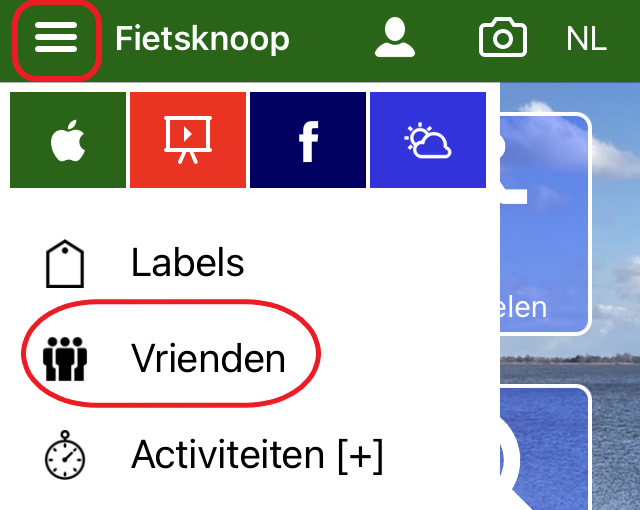
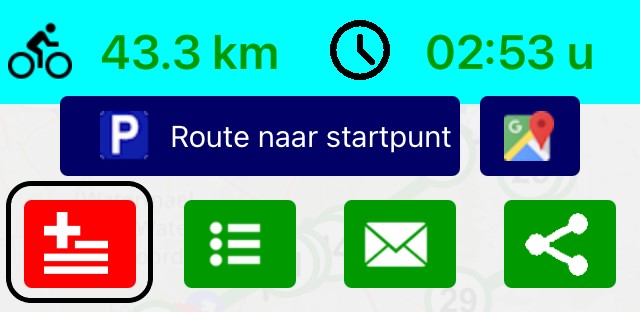
App: Open the Friends list from the left multi-selection menu. Click on the appropriate Friend, and the list of shared routes will be displayed. Click on a route to see it. Click the red button with the + sign to add the route to your own list of Routes.
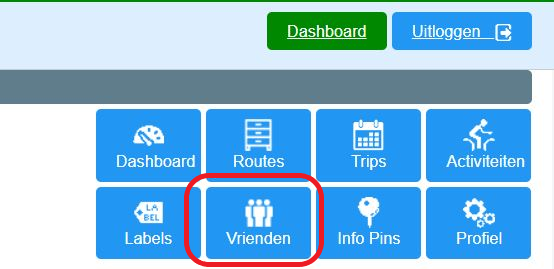
Website: Log in and click on the blue button Vrienden (= Friends), top right. Click on the appropriate Friend and the list of shared routes will be displayed. Click on a route to see it. Click the green button Toevoegen (= Add) to add the route to your own list Routes.
- Deleting saved routes
App:
Open your list 'Routes'.
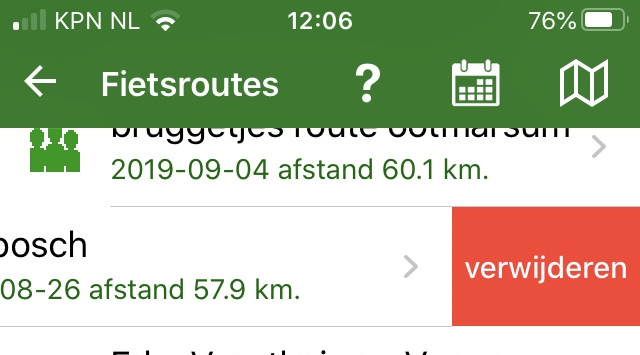
For iOS: move the route to be deleted to the left and click on the red 'delete' button.
For Android: click a bit longer on the route name in the list (so-called long-click). A delete question appears. Click on 'yes'.
Website:
Log on to www.fietsknoop.nl/dashboard/inloggen. The website is in Dutch.
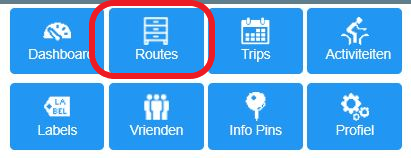
Choose the blue button 'Routes' on your own page. Click on the button 'route x' to the right of the route to be deleted.
It is also possible to remove several routes at once.
Click on the button 'Meerdere routes verwijderen = Delete multiple routes'. Tick the routes to be deleted and click on 'Geselecteerde routes verwijderen = Delete selected routes'.
See also the instruction video on the website.


- Adjusting a not yet saved route
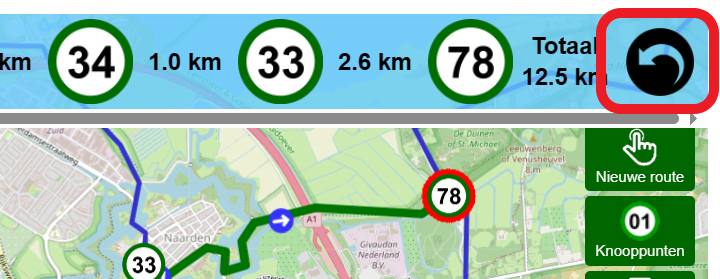
As long as the route is not yet saved, you can change it by using the button 'take back last point'.
App:

Website:
Once the route has been saved, it is only possible to modify it with a Fietsknoop[+]Plus account.
- Creating routes without nodes, an Activity
Fietsknoop is a digital planner for planning routes along the official nodes. Without an account, or with a basic account, only this network can be used. Anyone with a Fietsknoop[+]Plus account can create their own routes, as gpx tracks.
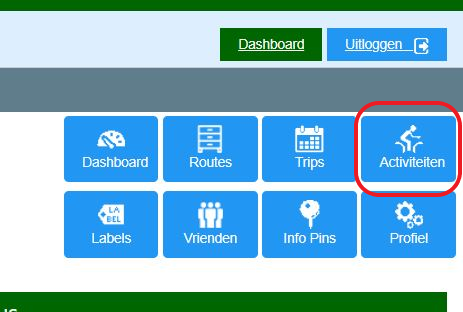
Go to the website and log in to your account. Click on the blue button 'Activiteiten' (= Activities) and choose 'Fietsen' (= Cycling) or 'Wandelen' (= Walking).
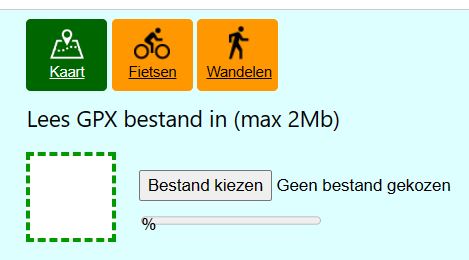
On the map, click with the mouse on the spot where you want to start the route. Click anywhere else and Fietsknoop will create the shortest route between the two points using the existing paths. Drag a point if you want to change the route.
Save the route and use it as an 'Activity'. As the route does not run through the nodes, no voice support is possible.
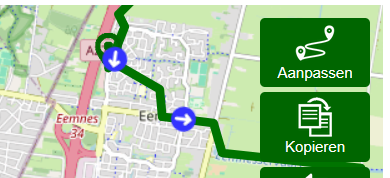
Want to edit the saved gpx track, the Activity, afterwards? Open the Activity on the website. Click the Aanpassen (=Modify) button at the top right of the map.
- To save a route in the app
App:
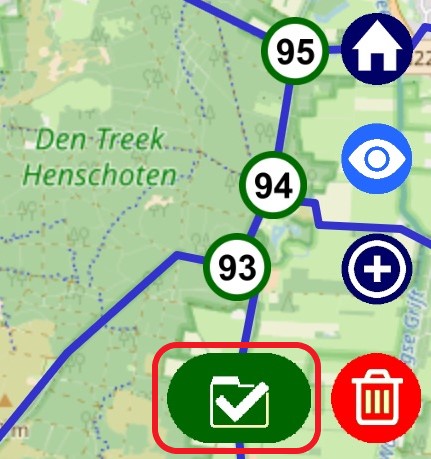
Create a route and click on the green 'save' icon.
On the next screen, fill in the details and finally save with the dark blue 'Save' button. Return to the main menu and your saved route can be found in the 'Routes' list.
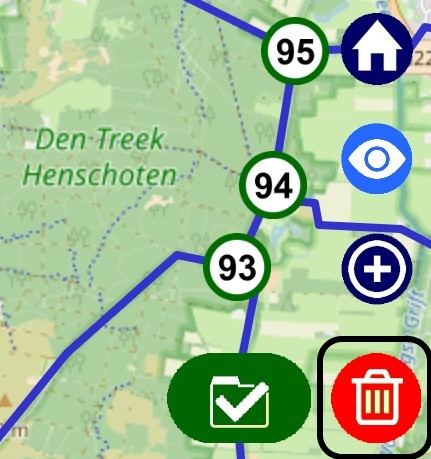
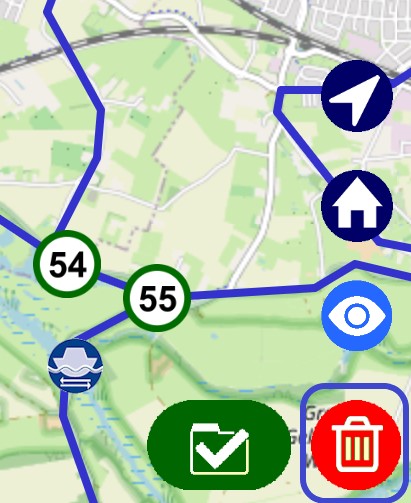
Is the route not to your liking, delete it by clicking on the 'trash' symbol.
- Starting a route
Choose a route from 'Routes' and open it.
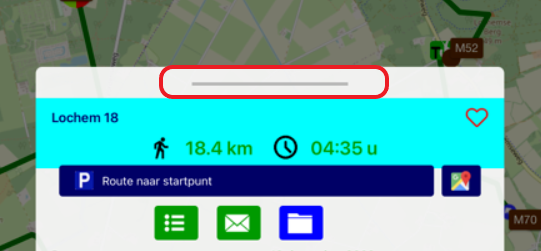
Click the grey line on the overlay screen or on the screen itself to make the overlay screen disappear.
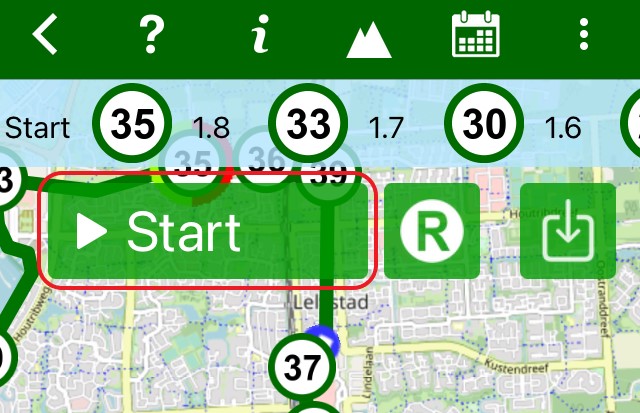
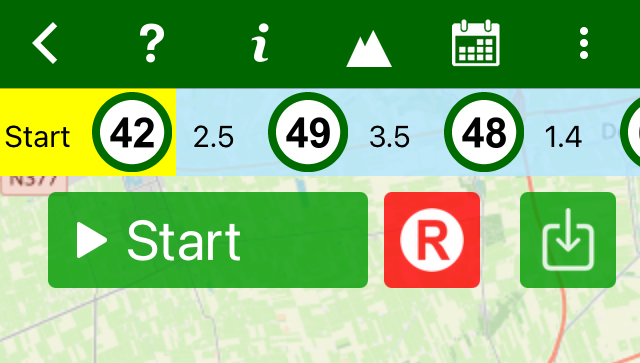
Click Start to start the route.
Fietsknoop[+]Plus:
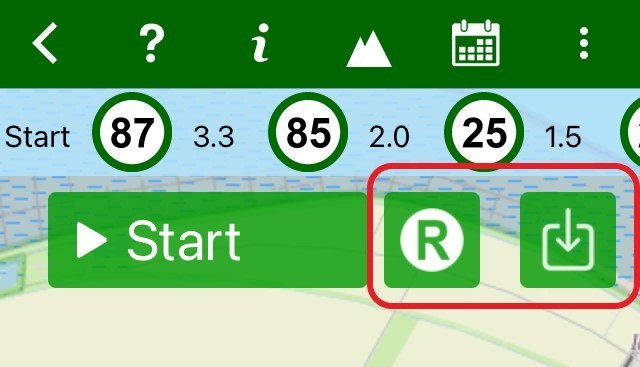
Click the green R button to record the route. Then click on Start to begin the recording and the route.
Click the download icon to temporarily save the route map to your phone for offline use.
- Show network
For a route, only the nodes used are shown. Sometimes you might also like to see the network with the surrounding nodes. That's possible!
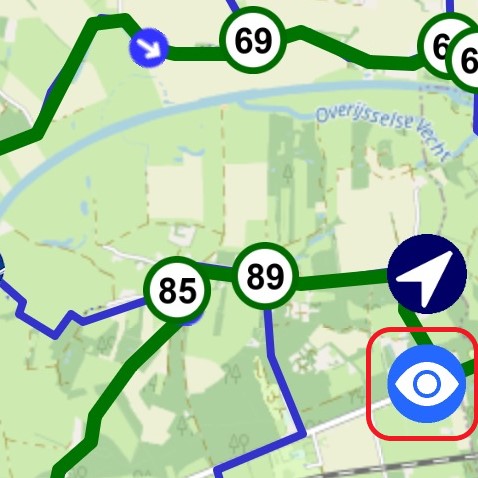
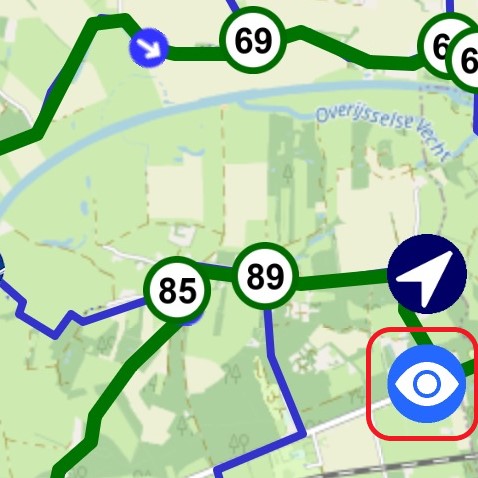
At the bottom righthand corner of the map, you will see the eyelet symbol.
Click it and you can see the node network around the route. Clicking again clears the map so you can better read a place name or address.
Click the eyelet a third time and the route is shown again.
Are the nodes not yet visible? Then zoom in on the map.
- Maximum length of a route
In principle, a route can be made endlessly long. When clicking on nodes, however, there is something to bear in mind.
The maximum distance between two selected nodes should not exceed about 100 kilometres. Calculating the intermediate route is otherwise too much of a burden on the server, especially on busy days on Fietsknoop.
For example, if you would like to plan a route from Maastricht to Groningen, choose a node every 100 kilometres or so. This way, you can plan your route with just a few clicks.
- Cycling or hiking free routes, without planning
Cycling or hiking a route without planning it in advance - a so-called Free Route - is possible.
Open the planner and click on the triangle in the green top bar.
Click Start to see your position on the map while cycling or hiking.
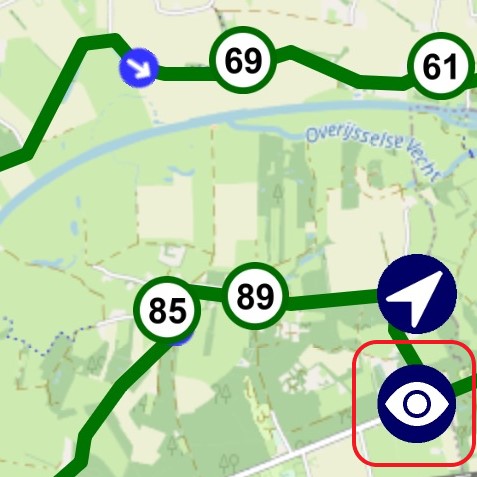
To see the nodes and paths present, click the little eye-symbol.
You can also record your route. This will create a gpx recording of your route. You will find it under 'Trips'.
Click R (Record) to also record the route (only for Fietsknoop[+]Plus).
Then click Start.
NB: when cycling or hiking a route, without pre-planning, voice support is of course not possible.
- Trips: recordings and notes
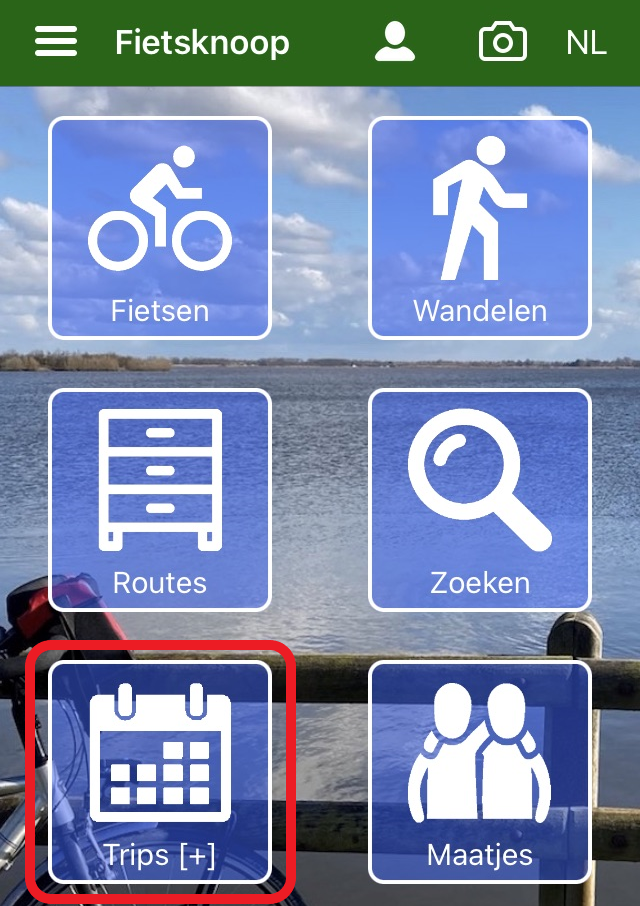
In Trips, you can see when you made a recording of a route and which notes were added.
You can see the recording of a previously saved route, together with the original route.
You can also find the recording of a so-called free route (without nodes) here.
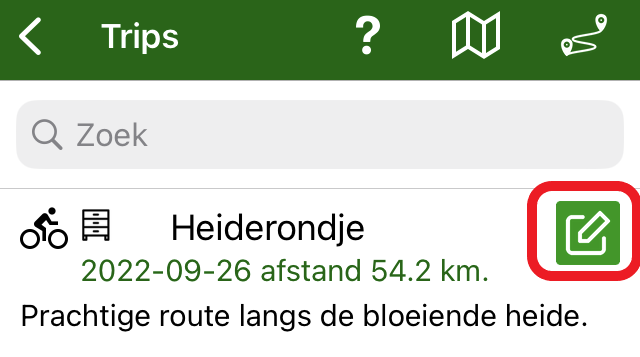
Write a note to your recording in Trips by clicking on the pen icon to the right of the title.
See also the instruction video on Trips at www.fietsknoop.nl/videos.
- How to create a route in the app
Open the app. Choose 'Biking' or 'Hiking'. Click on a node and then on another node. Fietsknoop will show the intermediate route via the node network.
Planning a slightly longer route in one go?
Use the text box to enter an address/place name/postcode.
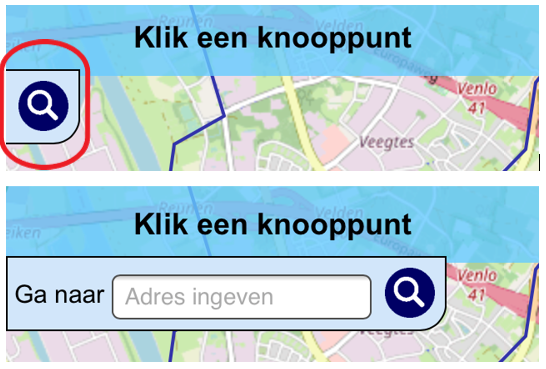
Then click a node. Enter a new address and the map moves to this address. Click another node and Fietsknoop will create the route.
NB: do not choose place names too far apart. Fietsknoop can handle a distance of about 100 kilometres. So for longer routes, choose an intermediate address.
Is the route satisfactory? Save it by clicking the save symbol.
Give the route a name and any additional information. Save.
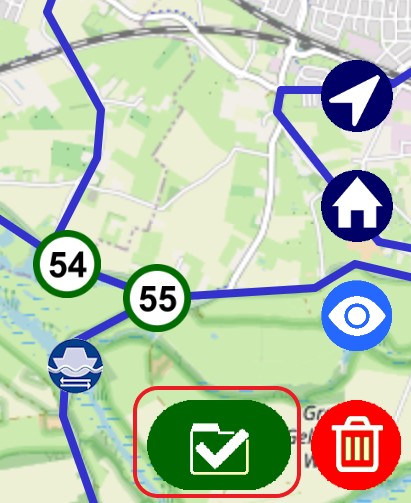
The route now appears in the Routes list. Can' t you see the new route? Scroll down the screen to refresh the page.
Are you creating a new route after this and the old route is still visible in the planning screen? Click on the bin symbol to empty the map.

- Creating a route on the website
How to create a route on the website?
Log in to the website www.fietsknoop.nl/dashboard/inloggen. On your own page, choose the 'Planner' button.
Click on a node, click another node and Fietsknoop will show the shortest route via the node network.
Create the route this way and save when the route is ready.
Creating a slightly longer route? Use the text box at the top of the map to enter an address/postcode/city name.
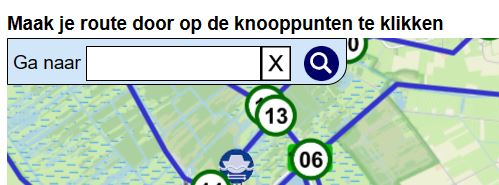
Click on a junction. Enter a new address and click on the new node. Fietsknoop will create the route.
NB: For routes longer than 100 kilometres, you need to take an intermediate step.
Save and name the route.
You will find the route on the route overview 'Routes', via your dashboard.
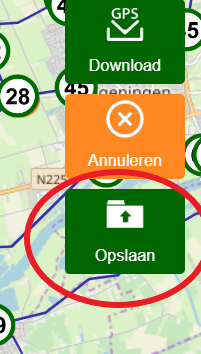
By logging in to the app, these routes become visible in your account.
NB. the website is only available in Dutch. With the help of the automatic translation function in your browser, you could translate the website.
- Sharing routes with Friends or everybody
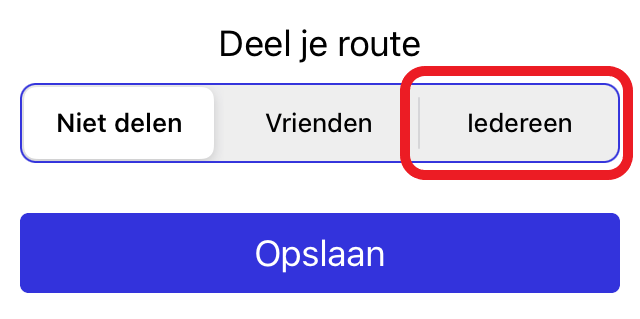
You can convert a saved route from 'Do not share', to 'Friends' or 'Everybody'.
In the app:
Open the route in your Routes list, and click on the archive icon on the overlay screen.
Indicate who the route is intended for and click on Save.
on the website:
log in to your account.
Click on the blue Routes button.
Open the desired route.
Click the Wijzigen (= Edit) button near the information above the route map.

Click 'met iedereen' (= Share route with everyone).
Click on 'Opslaan' (= Save).
The route has now been given a qr code. It can be scanned by others.
It may take some time before the route is visible in the public file of Fietsknoop (max. 1 hour).


- View Trips (recordings of routes) on the website
Log in to www.fietsknoop.nl/dashboard/inloggen and click on the blue Trips button.
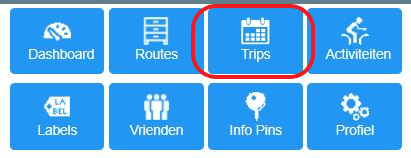
In the overview, you will find all your Trips, the most recent one at the top of the list. To see the recording of your Trip, click the 'Opnames' (= Recordings) button.
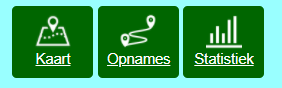
NB: the website is only available in Dutch. Using your browser's automatic translation function, you may be able to convert the website to your preferred language.
- Adjusting route details in the app
App:
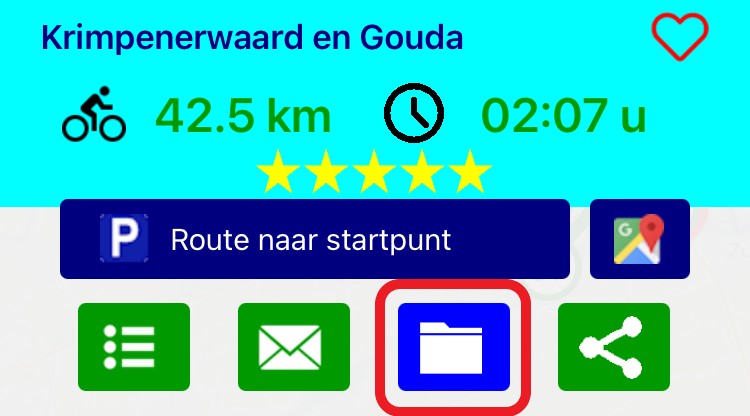
Open the appropriate route in the 'Routes' list. Click the archive icon on the overlay screen.
Adjust the data, or add a description and save.
Return to the 'Routes' list and refresh the screen if necessary by pulling it down.
Now the information has been saved properly.
- Adjusting route details on website
Website:
Log in to www.fietsknoop.nl/dashboard/inloggen.
Click on the blue Routes button, top right.
Open the appropriate route.
Click the 'wijzigen' (= modify) button in the green area above the map.
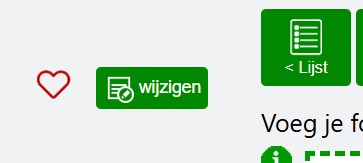
Adjust the data and save.

It is possible to save data with a route that is visible only to yourself, such as a rating of your own route and a private note. This data will be invisible to others, even if the route is saved as ‘share with everyone’ and thus can be found in the public route file.
NB: The website is only available in Dutch. With the help of the automatic translation function in your browser, it may be possible to translate the website.
- Quickly create a closed route
How to create a closed route in a few clicks?
Click on your starting node (1),
click on another node a little further away (2)
and elsewhere again (3).
Click the end point (your starting node) (1).
Fietsknoop plots the intermediate route for you.
Save the route.

- Delete multiple routes
Easily delete multiple routes at the same time.
Website:
Log in to your account, click the blue 'Routes' button at the top right, then click the blue 'Meerdere routes verwijderen'( = Delete multiple routes) button.
Via the app, it is unfortunately not yet possible to delete multiple routes at the same time.
NB: the website is only available in Dutch. With the help of your browser's automatic translation function, you may be able to translate the website.
- Search criteria for routes
Searching for a route in the large database is easy by using the various criteria or filters.
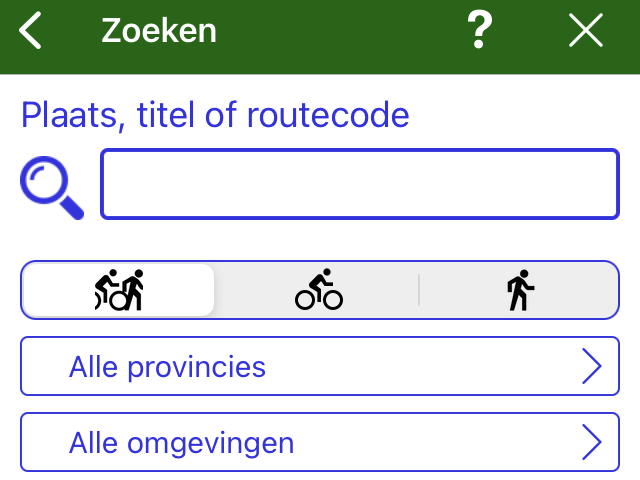
Search by province, area, distance, rating, for a particular type of bike, only Fietsknoop routes etc.
App:
Click on the search option and make a selection.

Website:
Go to the page https://www.fietsknoop.nl/alleroutes/zoeklijst.
and make a choice from the options by clicking on it.

#search #routes #distance #province #surroundings #criteria #filters
- Adjust your own and saved routes on the website
Only available for Fietsknoop[+]Plus.
Website:
Log in to your account at www.fietsknoop.nl/dashboard/inloggen. Choose the blue button 'Routes' and open the correct route.
On the right side of the map you will see several green buttons. Choose 'Aanpassen' (=Adjust) to take back the route node by node in the blue node bar - by clicking the black circle with the white arrow - and add a node at the right spot. Is the route in order, click on the green 'Opslaan' (=save) button.
NB. The website is only available in Dutch. Read the tip below!

Tip: as a [+]Plus user you can also change the starting point or reverse the route. This can be useful to move a node that is in the middle or at the beginning of the route close to the end point with the help of these two options. This way you do not have to go back as far in the route. Once the route is finished, you can set the original starting point again and/or reverse the route.
For information on repairing routes, please refer to the relevant section in the manual: Repairing routes
Only possible on the website.
- Reverse route direction
Reversing the driving direction of your own and saved route is easy when you have a Fietsknoop[+]Plus account.
App:
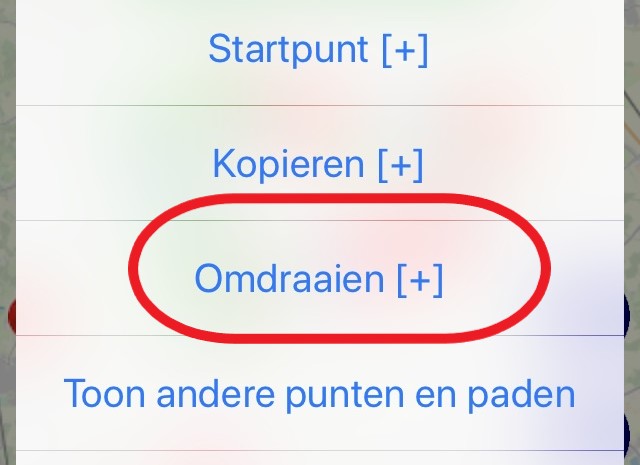
Open the route in 'Routes'. Click on the overlay screen, and then click the multiple-choice menu at the top right.
Choose Reverse.

Website:
Log in to the website. On your personal page, choose the blue 'Routes' button. Select the right route from your list and open it.
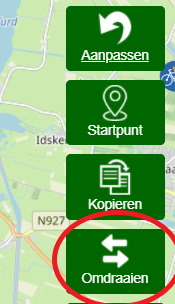
To the right of the map, you will see green buttons. Choose 'Omdraaien' (= Reverse).
- Copy routes
Copying a saved route is easy when you have a Fietsknoop[+]Plus account.
App:
Open the relevant route in 'Routes'.
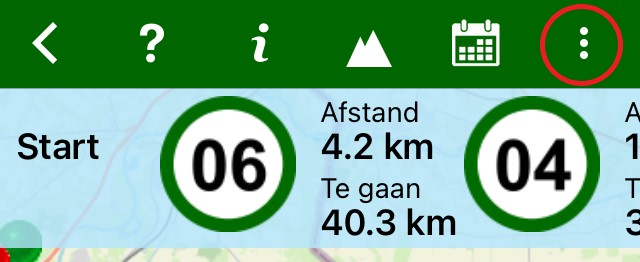
Click on the overlay screen, then click on the multiple-choice menu at the top right.
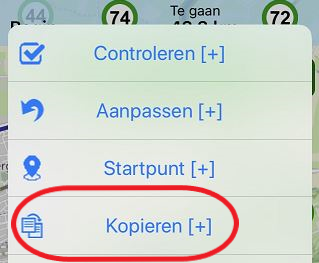
Choose 'copy'.
Choose 'yes' at the confirmation question whether you would like to copy. You will find the copied route in 'Routes'.
Website:
Log in to the website. On your personal page, choose the blue 'Routes' button. Select the relevant route from your list and open it.
To the right of the map, you'll see green buttons. Choose 'Kopiëren' (= Copy).
- Change starting point of your own and saved route
Changing the starting point of a route is easy with a Fietsknoop[+]Plus account.
NB: changing a starting point can only be done for a closed round trip and for your own route!
App:
Open the relevant route in 'Routes'.
Click on the overlay screen and then click on the multiple-choice menu at the top right.
Choose 'Starting point'.
Click the appropriate node in the list and confirm with 'ok'.

Website:
Log in to the website. On your personal page, choose the blue 'Routes' button. Select the relevant route in your list and open it.
To the right of the map, you will see green buttons. Choose 'Startpunt' (= Starting point). In the node list, click on the correct new start node.
- Verify routes
The node network changes from time to time. Would you like to know if your routes are still correct? Verifying a saved route is easy when you have a Fietsknoop[+]Plus account.
Website:
log on to www.fietsknoop.nl/dashboard/inloggen or use the green 'Login' button in the top bar of the website.
Go to 'Routes'. On the Route Overview screen, there is a 'Controle' (= Verify) button. Click this and Fietsknoop will show you which route is no longer correct.
App:
Open a route from the 'Routes' list. Click on the multiple choice menu at the top right and choose 'Verify[+]'. Adjust the route. For further instruction on this, see 'Adjust routes in app' or 'Adjust routes on website' in this manual.


- Recording a route
Open the required route.
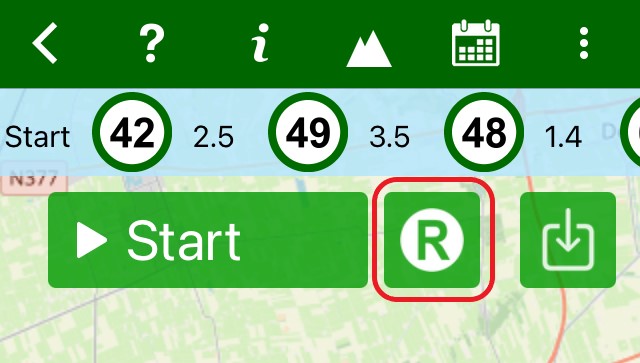
Click on the R symbol (= record), after which it is displayed in red. Then click Start. The recording is saved in Trips.
Would you like to watch the recording later?
Go to Trips and open the appropriate route.
Also watch the instruction video on www.fietsknoop.nl/videos about Trips.
Would you like to see the nodes and the network in the recording?
Click on the eye symbol in the bottom right corner of the map.
- Routes, Trips and Activities
What is the difference between Routes, Trips and Activities?
A Route is a node route, based on the official node network of nodes and intermediate road sections.
A Trip is a recording of a cycled or walked route, and/or a route with a note taken. (https://www.fietsknoop.nl/info/handleiding-item/89/1)
An Activity is a read-in gpx track. This need not be based on the official node network, this can be made anywhere on the map. It is therefore also possible to read in a gpx file created in a planner other than Fietsknoop.
See https://www.fietsknoop.nl/info/handleiding-item/50/1 and https://www.fietsknoop.nl/info/handleiding-item/160/1
An Activity cannot simply be converted to a Route because there is
- no node information is included in a gpx file
- an Activity can have been created anywhere on the map, without a connection to the official network.
- Sharing routes with one Friend
Share a route with one Friend, instead of all Friends.
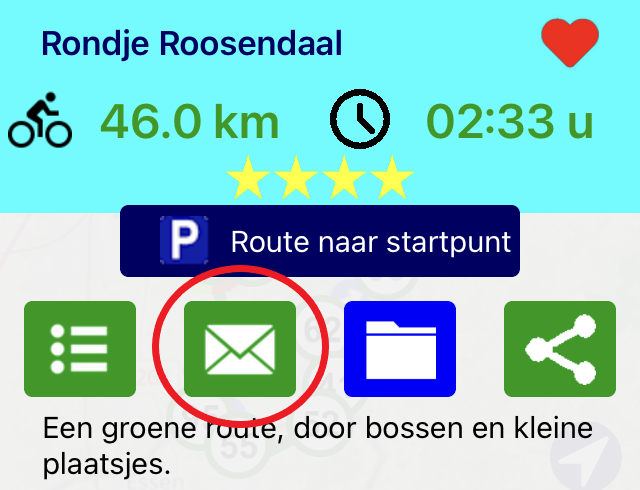
Open the route, and click on the envelope symbol on the overlay screen.
Choose the Friend's name and click the blue Send button.
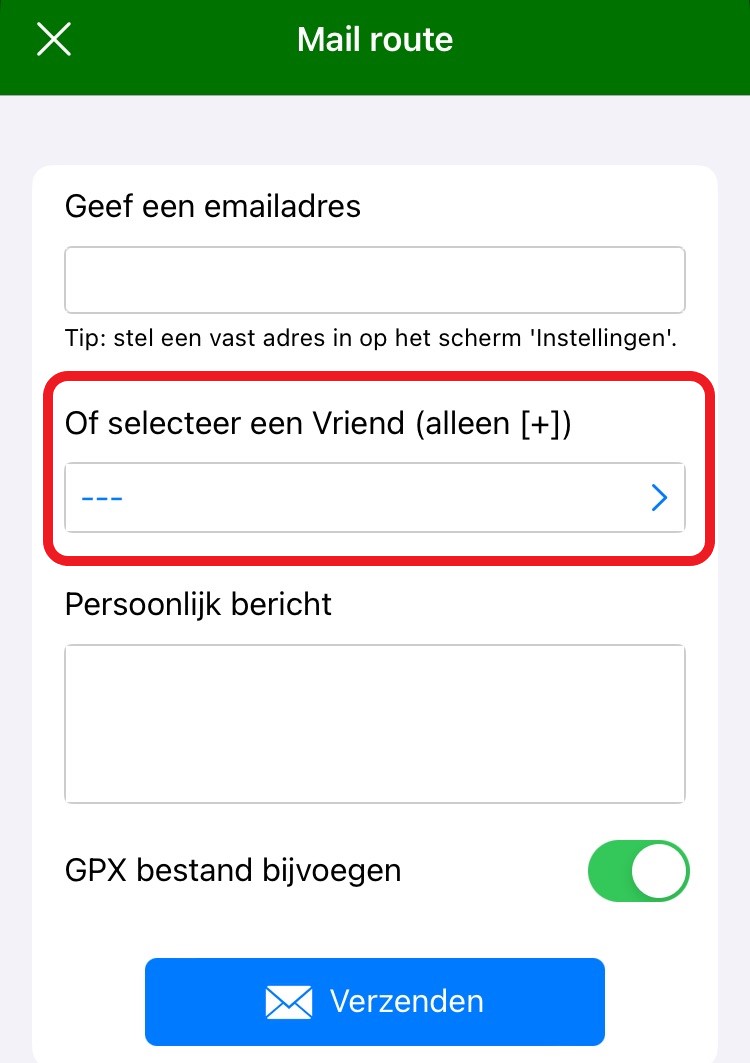
The Friend will receive the route by email. There is a QR code below the list of nodes. The route can be opened by scanning this QR code. Then add the route to your own list of Routes by clicking on the red square button with the plus sign on the overlay screen.
Want to share your route with all Friends? Save the route as ‘share with Friends’, using the archive icon on the overlay screen. See manual item ‘Sharing routes with Friends or everybody'.
- Used nodes [+]
With a Plus account, you can quickly see on the planning screen which nodes you have already used in your saved routes.
App:
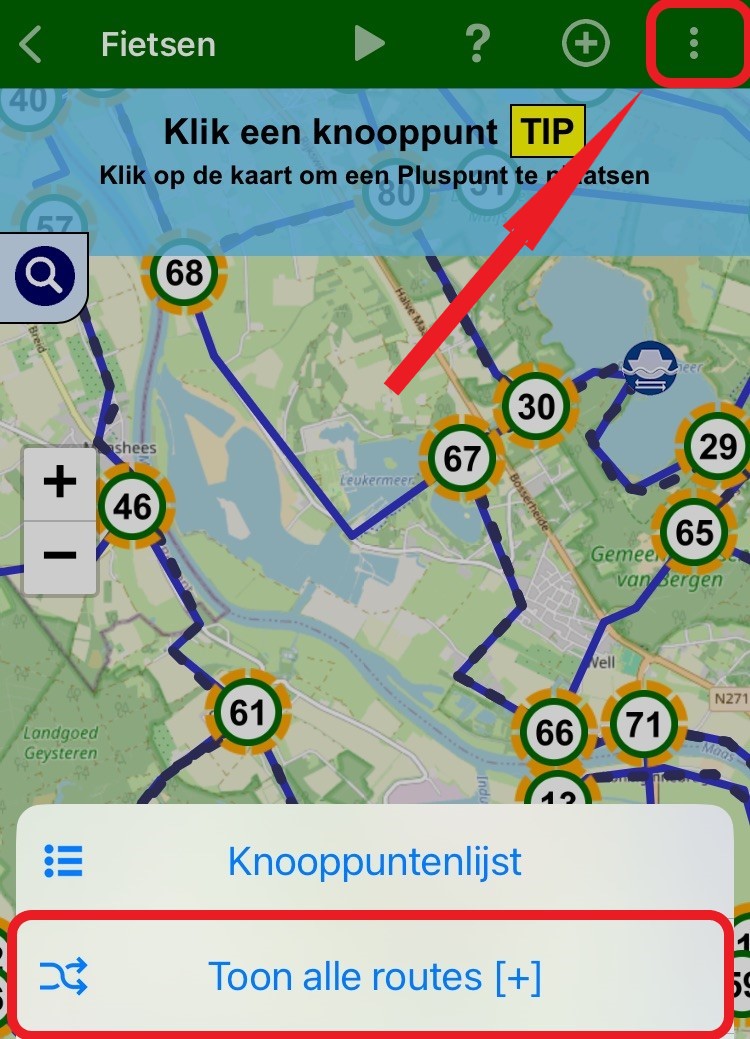
Open the planning screen. Click the multiple-choice menu at the top right (the three white dots). Select Show all routes [+].
On the map, you see the previously used nodes with a yellow highlight, and your saved routes as black dotted lines.
Website:
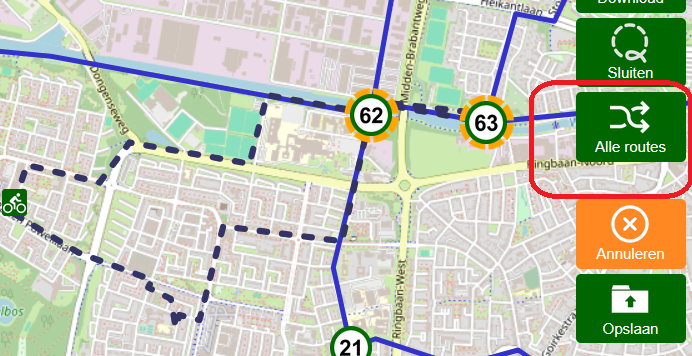
Log in to your account on the website and open the planning screen. To the right of the map there are several green buttons.
Click on ‘Alle routes (= All routes)’ and on the map you will see previously used nodes with yellow shading and your saved routes as black dotted lines.
- Repairing routes on the website [+]
You can almost always easily repair your route using the repair button on the website.
Open the route that no longer matches the current node network.
Click on the Controleer (= Verify)-button on the right-hand side of the map.
The pop-up screen will show you where the route is no longer correct.
Click on the Repareer-button.

After the repair, you can click on the Controleer (= Verify)-button again to see if the route has been repaired correctly.

Only available for Fietsknoop[+]Plus.
- MTB and GPX routes
At www.fietsknoop.nl/gpxroutes, you will find GPX and MTB cycling and hiking routes created by Fietsknoop users.
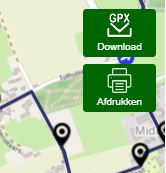
Use the 'download' button on the map to download this route as a GPX file, or scan the QR code above the map.
- Sorting routes by date, by alphabet or by kilometres
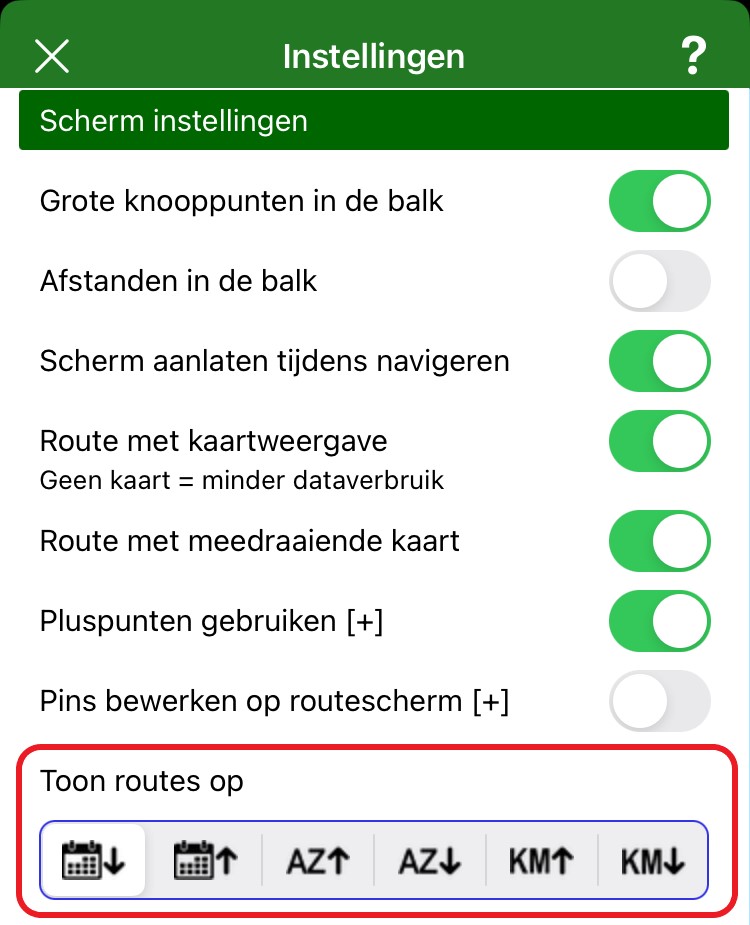
Routes can be displayed and sorted in the app in three ways: by date, by alphabet (title), by kilometres.
Go to 'Settings', and specify which way you would like the routes to be shown.
There are more options on the website.
Log in and choose the blue 'Routes' button.
Above the route overview, you will find many more sorting options.

The website is only available in Dutch. With your browser's automatic translation function, it may be possible to translate the website.
- Synchronizing phone and tablet/pc
One account can be used on multiple devices. Saved routes and other information are synchronised with other devices by logging into your account.
- QR code
The QR code is only visible on routes shared with everyone.
In the app, you can convert a 'private' route to a public route by opening the route, clicking on the archive icon on the overlay screen and then making the route public by clicking on 'Everybody'. Then click on 'save'.
Converting a 'private' route to a public route can also be done via the website.
Log in to your account on the website, via www.fietsknoop.nl/dashboard/inloggen.
On your personal page, click on the blue 'routes' button.
Open the required route. Click on the green 'gegevens wijzigen' (= change data) button above the map. Indicate that the route may be public and save the changes.

The QR code is now visible above the map.
- Create QR code
Every route that is public is automatically given a QR code on the website. This allows someone else to easily add the route to their own list.
Create a route, save it and specify that the route can be found by 'everybody'.
Click on Save.
The QR code is visible on public routes on the website.
NB: the website is only available in Dutch. With the help of your browser's automatic translation function, you may be able to translate the website.
- Web service
With a (free) Fietsknoop account, you can create and save routes. If, when saving, you indicate that you want to share the route with 'everybody', the route will appear on our public route page www.fietsknoop.nl/fietsknoop/routes after about 15 minutes.
In the app, the route can be found under 'Search'.
Anyone can now copy this route for their own use.
If you want to offer more routes and have your own website, you can use our web service to get your routes automatically on your site. Read more about this at www.fietsknoop.nl/fietsknoop/webservice.
- Rating routes in the app
Have you added someone else's route to your list 'Routes' and liked it?
You can easily rate the route with a few stars.
Open the route from your list 'Routes'.
On the overlay screen you will find the star symbol.
Click it and choose the number of stars you want to give it.
Add any text you want, and save.
The rating and text are now visible to everyone. The owner of the route will receive an automatic message about this rating.
It is not possible to rate your own routes.


- Rating routes on the website
Have you added someone else's route to your list 'Routes' and liked it?
You can easily rate the route with a few stars.
Log in to the website and open the route from your list 'Routes'.
In the information box above the map, you will find a blue 'Rating' button (when no stars have been given yet), or a blue button with stars (when the route has already been rated by someone).
Click it and choose the number of stars you want to give.
Add a text if necessary, and save.
The rating and text are now visible to everyone. The owner of the route will receive an automatic message about this rating.
It is not possible to rate your own routes.


- Advertentie -